Shortcuts are for reference only; use what works best for you
JewelCAD Support Pack Download
Download Link
Lanzou Cloud
Extraction Password:
Original Halo restricted components have been removed; migrated local draft displays the backup content directly.
Interface
Menu
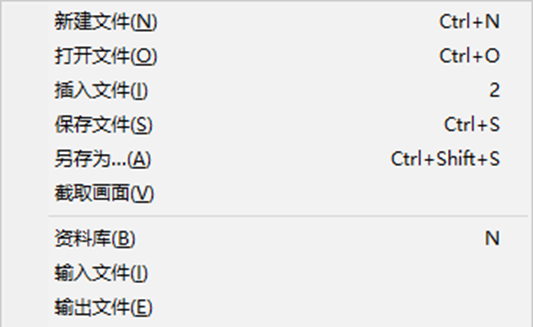
File
New File: Close current file and create a blank workspace
Open File: Close current file and open another
[2] Insert File: Insert another JCD file into the current workspace
[N] Library: Open the custom library toolbox
Import File: Insert STL, DXF, and IGS files here
Export File: Export current file to other formats
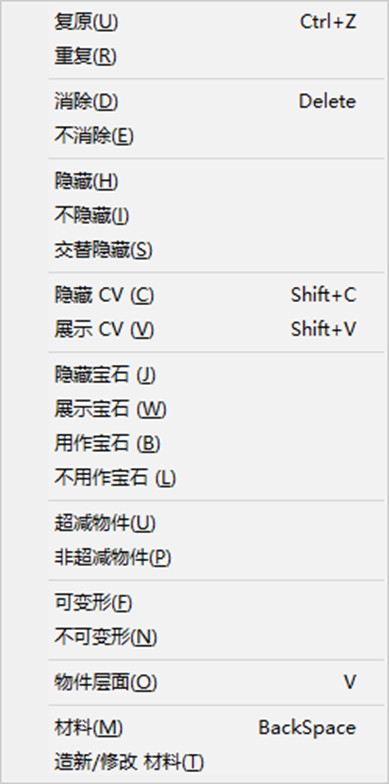
Edit
[Ctrl+Z] Undo: Revert to the previous step
Redo: Go to the next step
Delete: Remove the selected object
[Alt+E,H] Hide: Hide the object behind
[Alt+E,I] Unhide: Show all objects on the front
[Alt+E,S] Swap Hidden: Swap front and back
[Shift+C] Hide CV: Hide control vertices
[Shift+V] Show CV: Show control vertices
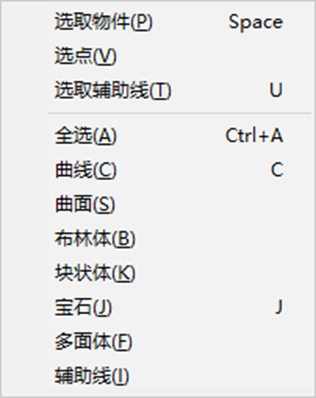
Select
[Space] Select Object: Selection mode, the most commonly used mode. Select models, hold Shift to select points, drag to box-select, click to single-select, click again to deselect
[C] Curves: Select all curves. After adding supports, select and delete to clean up
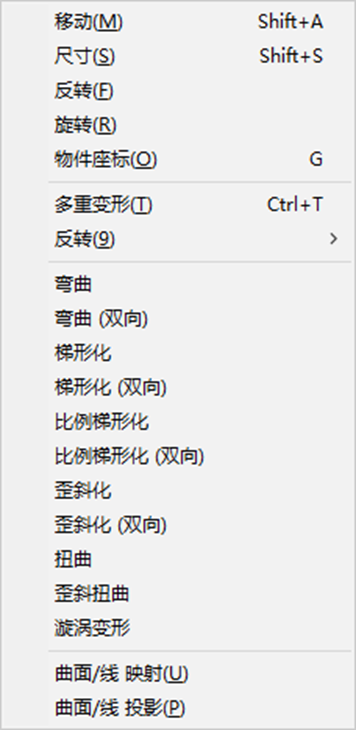
Transform
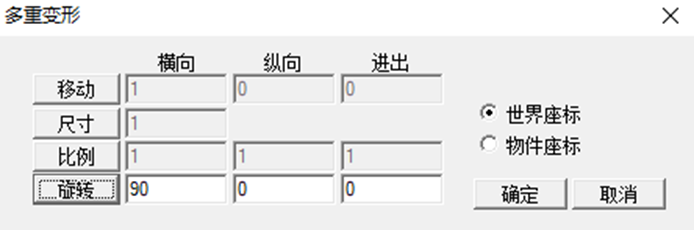
[Ctrl+T] Multi Transform: Move, scale, and rotate selected objects in various ways
Move, Size, Scale, and Rotate tabs above — click to activate and apply the transformation
Scale: Disable all others, enable only Scale, set to 1, 0, 1 to flatten all selected objects to the zero plane
Toolbar
Icon
Tool Description
Coarse Grid: When off, movement snaps to integer units
Wireframe: Simplest line display, showing basic edges
Flat Shaded: Standard line display, showing main edges and object bounds
Quick Shaded: Simple surface rendering — may differ from the actual model when Booleans or other operations are active
Rendered: Standard model rendering, showing the print job's actual appearance
[F] Front View: View model from the front
[L] Left / [R] Right View: View from the left or right side
[K] Back View: View from behind
[T] Top / [M] Bottom View: View from above or below
Zoom to Fit: Fit the selected area to the full viewport
Zoom to All: Show all models in the viewport
Copy Tools
Icon
Tool Description
Clip & Paste: Cut the selected object, then copy and paste. In wireframe mode, pastes flat onto the view plane; in rendered mode, pastes onto the model surface aligned to the zero plane
Mirror Left-Right: Mirror-copy the object symmetrically across the coordinate axis
Mirror Top-Bottom: Mirror-copy an object top to bottom
Rotate 180° Copy: Rotate 180 degrees and copy an object
Mirror Both: Mirror-copy both horizontally and vertically at once
Linear Array: Copy with parameters such as distance and count
Circular Array: Copy multiple objects around the zero point
Transform Tools
Icon
Tool Description
[Shift+A] Move: Move selected objects. Hold left-click and drag to move in one direction; hold right-click and drag to move freely
[Shift+S] Size: Scale selected objects. Hold left-click and drag for uniform scaling; hold right-click and drag to stretch in a single direction
Rotate: Click and drag to rotate objects
Object Coordinates: When active, operations use the object's local axes. Normally off — uses the global coordinate system
Curve Tools
After selecting a curve tool, hold Shift and click a curve to edit it with the active tool
Icon
Tool Description
Freehand Curve: Generate a curve from clicked points
Quad Symmetry Curve: Symmetrical boundary curve in all four directions
Circle: Draw a circle based on parameters
Close Curve: Auto-close the selected curve
Open Curve: Break the selected closed curve
Surface Tools
Icon
Tool Description
Extrude Surface: Stretch a line in one direction to form a model
Revolve: Rotate a line horizontally or vertically to form a model
Pipe Surface: Click a line, then a circular profile to generate a pipe model. You can also prepare 1 or 2 profiles — choose single or dual profile to create varied models
Boolean Tools
Icon
Tool Description
[Shift+G] Union: Merge all selected objects into one
Intersection: Keep only the overlapping portion of all selected objects
Subtraction: Use one object to cut away from another
[Ctrl+G] Undo Boolean: Revert all Boolean operations on the object
JewelCAD Support Generation Workflow
Open/Import File
Drag file into the software window
File > Open to open a file
File > Import to bring a file into the current workspace
Prepare for Support Generation
Press T for top view, [Shift+Space] to fit all objects in view
Select objects other than the one to be supported, [Alt+E] Edit > [H] Hide
Select the object to be supported and move it to the center
Press R for right view, ensure it is centered left-to-right
Press F for front view, ensure it is centered left-to-right
Rotate the object to a suitable angle
Move the object's bottom face to zero, then raise it by 3mm
Press N to open the library, select and load the support tool
Use Move and Scale to position supports as needed
Select the support and object, then union them into one file
Comments
Share Article
Getting Started with JewelCAD (Includes Support Toolkit)
Solve jewelry 3D printing deformation challenges starting from JewelCAD design. Cophoda 3D provides in-depth JewelCAD modeling guidance and companion support software tools, purpose-built for extreme surface quality precision casting. Leverage scientific support layout strategies and the zero-peel-force advantage of continuous peel-free technology to achieve superior jewelry casting yield rates.





Comments